Part 1 - Drawing the ‘@’ symbol
Code
Write the following code into the main.py file:
import sdl2.ext
from sdl2 import SDL_Color


sdl2.ext.init()

screen_width = 640
screen_height = 480

window = sdl2.ext.Window(
    "PySDL2 Roguelike Tutorial", size=(screen_width, screen_height)
)
window.show()

renderer = sdl2.ext.Renderer(window)

fg = SDL_Color(255, 255, 255)
bg = SDL_Color(0, 0, 0)

font_manager = sdl2.ext.FontManager(
    font_path="C:\\Windows\\Fonts\\arial.ttf", size=16, color=fg, bg_color=bg
)

factory = sdl2.ext.SpriteFactory(renderer=renderer)

text = factory.from_text("@", fontmanager=font_manager)

x_offset = screen_width // 2 - text.size[0] // 2
y_offset = screen_height // 2 - text.size[1] // 2
renderer.copy(text, dstrect=(x_offset, y_offset, text.size[0], text.size[1]))

renderer.present()

processor = sdl2.ext.TestEventProcessor()
processor.run(window)

sdl2.ext.quit()
Run the code using python main.py and you will see the following picture
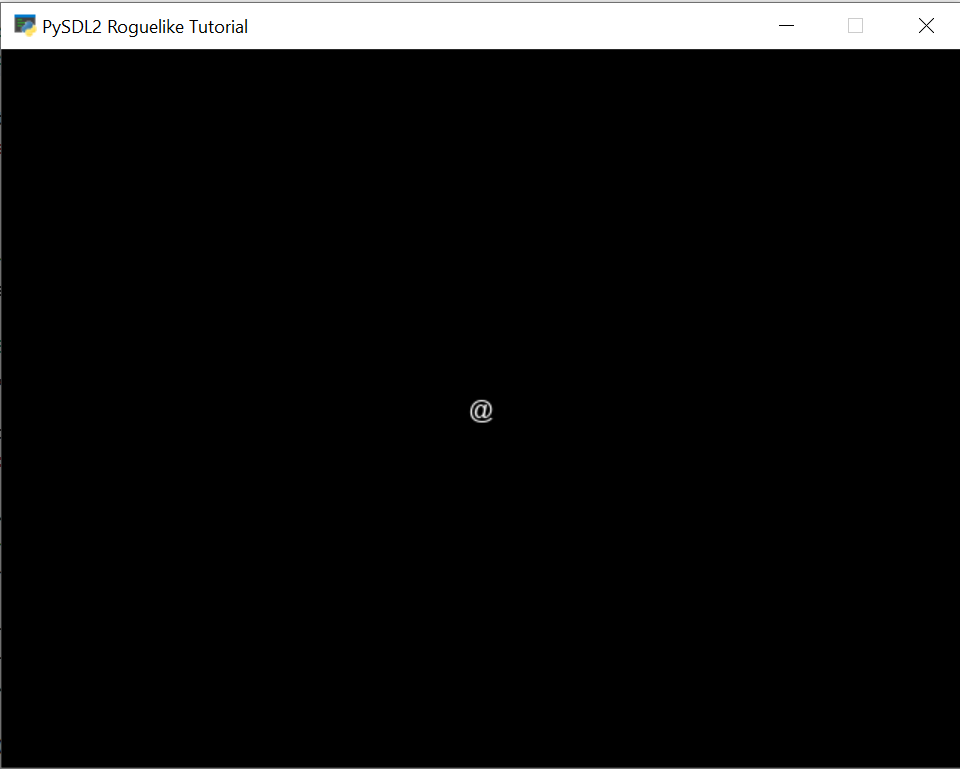
Explanation
Importing PySDL2 library
import sdl2.ext
from sdl2 import SDL_Color
Setting the resolution of the window
screen_width = 640
screen_height = 480
Creating a window with a title and a specific size
window = sdl2.ext.Window(
    "PySDL2 Roguelike Tutorial", size=(screen_width, screen_height)
)
window.show()
Create a renderer from the window variable
renderer = sdl2.ext.Renderer(window)
Foreground and background colors that will be used for outputting the character
fg = SDL_Color(255, 255, 255)
bg = SDL_Color(0, 0, 0)
Create a font manager with specific font and font size to be used in text outputting
font_manager = sdl2.ext.FontManager(
    font_path="C:\\Windows\\Fonts\\arial.ttf", size=16, color=fg, bg_color=bg
)
Create a sprite factory to then create a sprite from text
factory = sdl2.ext.SpriteFactory(renderer=renderer)
Create a sprite from text using a sprite factory
text = factory.from_text("@", fontmanager=font_manager)
Calculate the top left corner of the text to output
x_offset = screen_width // 2 - text.size[0] // 2
y_offset = screen_height // 2 - text.size[1] // 2
Output the text in a window
renderer.copy(text, dstrect=(x_offset, y_offset, text.size[0], text.size[1]))
Here all changes that were previously made will become visible. SDL2 first saves the changes that should be made to the screen and then with this command shows the changes
renderer.present()
Process the events so that the windows does not freeze and waits for it to be closed
processor = sdl2.ext.TestEventProcessor()
processor.run(window)
Clean up everything, once the application finishes
sdl2.ext.quit()